
Crowd Control Manager
The Crowd Control Manager Script
First, import the appropriate Crowd Control Package for your project. It can be found at: https://github.com/WarpWorld/CrowdControl.Client.Unity.Package/.
Adding and Modifying the Manager Script
The Crowd Control Manager drives all of the Crowd Control commands during gameplay. To locate the script:
- Create a new empty GameObject in your scene and name it "Crowd Control".
- Click on the newly created GameObject and go to the inspector. Click on "Add Component" and search for "CrowdControlBehavior". Add the script to the GameObject.
- Observe the inspector and you will see the Crowd Control Manager's fields that you can modify.
Manager Script Fields
The script has the following fields that you can modify:
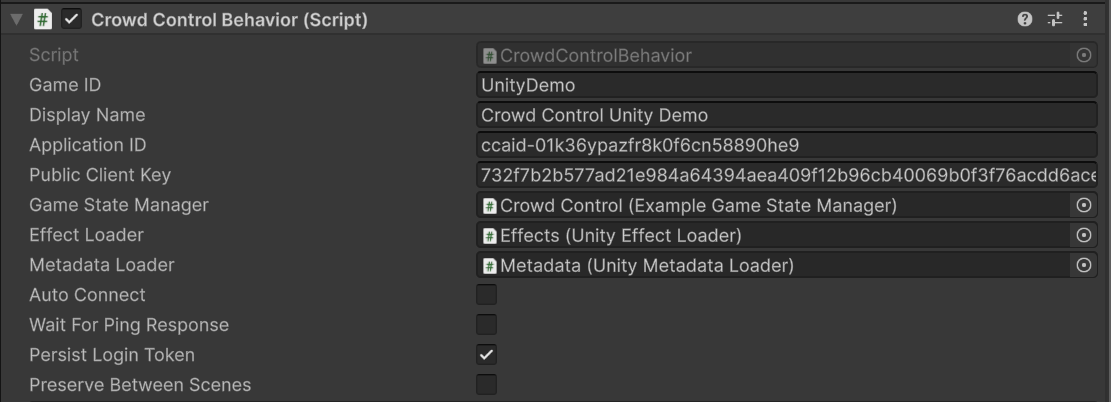
Game ID Required
The ID for your game is labeled as "UnityDemo," which is the default used for testing. After you submit an application for your game, you'll be assigned a specific Game ID.
Display Name Required
The name of the game that will be displayed to viewers in the stream's Crowd Control Menu.
Application ID Required
The Application ID is a unique identifier for your game, which is used to authenticate and connect to the Crowd Control server. You will receive this ID when you register your game with Crowd Control.
Public Client Key Required
The Public Client Key is a key that is used in conjunction with the Application ID to authenticate your game with the Crowd Control server.
Game State Manager Required
The Game State Manager is a script that you can create to manage the state of your game. It should implement the IGameStateManager interface, which includes methods for handling game state changes and effect triggers. You can create your own Game State Manager script and assign it to this field in the Crowd Control Manager.
Effect Loader Required
The Effect Loader is a script that you can create to load and manage the effects in your game. It should implement the IEffectLoader interface. It is recommded to use the provided UnityEffectLoader script, which can be found in the Crowd Control Client Unity Package. You can assign your custom Effect Loader script to this field in the Crowd Control Manager.
Metadata Loader
The Metadata Loader is a script that you can create to load and manage the metadata for your game. It should implement the IMetadataLoader interface. It is recommended to use the provided UnityMetadataLoader script, which can be found in the Crowd Control Client Unity Package. You can assign your custom Metadata Loader script to this field in the Crowd Control Manager.
Auto Connect
Whether to automatically connect to the Crowd Control server when the manager is initialized.
Wait for Ping Response
Whether to wait for a ping response from the Crowd Control server before proceeding with certain actions. This option is primarily used for debugging purposes and is not necessary for most applications.
Persist Login Token
Whether to persist the login token across sessions, allowing automatic login in future sessions.
Preserve Between Scenes
Whether to preserve the manager when switching between scenes.
Manager Script Events
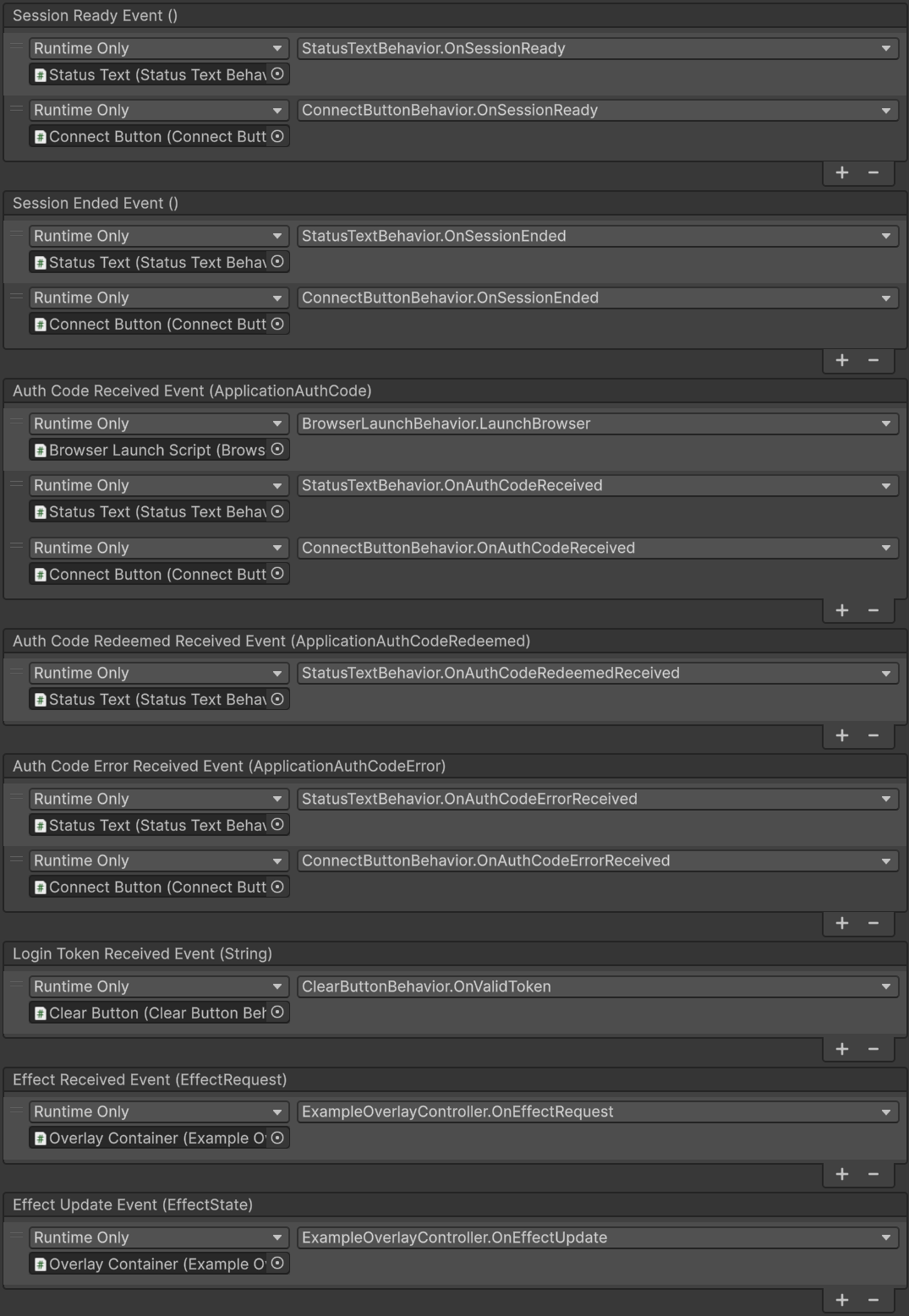
The script has the following events that you can subscribe to:
Session Ready
Invoked when the Crowd Control session is ready. This can be used to trigger in-game responses to the session being ready.
Session Ended
Invoked when the Crowd Control session has ended. This can be used to trigger in-game responses to the session ending.
Auth Code Received
Invoked whenever an authentication code is received from the Crowd Control service. This can be used to trigger in-game responses to authentication events.
Auth Code Redeemed Received
Invoked whenever an authentication code redemption result is received from the Crowd Control service. This can be used to trigger in-game responses to authentication events.
Auth Code Error Received
Invoked whenever an authentication code error is received from the Crowd Control service. This can be used to trigger in-game responses to authentication events.
Login Token Received
Invoked whenever a JWT login token is received from the Crowd Control service. This can be used to trigger in-game responses to authentication events.
Effect Received
Invoked whenever an effect request is received from the Crowd Control service. This can be used to trigger in-game responses to effect requests.
Effect Update
Invoked whenever an effect class update is sent to the Crowd Control service. This can be used to trigger in-game responses to effect class updates.
Manager Script Test Commands
The script has the following test commands that can be fired from the editor:

Connect
Manually connect to the Crowd Control server.
Ping Test
Send a ping request to the Crowd Control server to test connectivity and latency.
Clear Login Token
Clear the persisted login token, if any.
Launch Interact Link
Launch the Crowd Control Interact Link in the default web browser. The Interact Link is a web page that allows users to interact with the Crowd Control session and trigger effects.
Create Menu JSON
Generate a JSON file containing the current effects and metadata. This file is used by the Crowd Control service to populate the stream's Crowd Control menu.
Manager Script Functions
The script has the following functions that can be called:
Connect
Initializes the Crowd Control client and connects to the Crowd Control service. The manager must be enabled and have a Game State Manager and Effect Loader assigned before calling this function. If a valid persisted login token is available, the manager attempts to reuse it; otherwise, it requests a new authentication code.
Disconnect
Disconnects from the Crowd Control service and disposes the client instance. The current session is ended and any running effects are stopped.
Launch Interact Link
Opens the current Crowd Control Interact Link in the user's default web browser. This function requires an active Crowd Control client and a valid Interact Link.
Get Interact Link
Returns the current Crowd Control Interact Link URL. Returns null if the client is not connected or the link cannot be retrieved.
Clear Token
Clears the login token in memory and removes the persisted token from Unity's PlayerPrefs. The next connection requires full authentication.
Stop All Effects
Stops all effects currently running through the Crowd Control effect scheduler. The returned Task<bool> completes with true when all effects are stopped successfully, or false if the client is not available or an effect cannot be stopped.
Update Custom Effects
Loads custom effects from the configured Effect Loader and updates them in the Crowd Control system using merge mode. This function requires an active connection and an assigned Effect Loader; failures are logged to the Unity console.
Clone Effect
Clones a source effect to one or more destination effect IDs. Returns true if the clone operation succeeds and false if the client is unavailable or the operation fails.
Show Effects
Shows the specified effects in the Crowd Control menu. Effects can be specified by one or more effect codes, with an optional message displayed to users. The returned Task<bool> indicates whether the operation succeeds.
Show All Effects
Shows all effects in the Crowd Control menu. An optional message can be displayed to users. The returned Task<bool> indicates whether the operation succeeds.
Hide Effects
Hides the specified effects in the Crowd Control menu. Effects can be specified by one or more effect codes, with an optional message displayed to users. The returned Task<bool> indicates whether the operation succeeds.
Hide All Effects
Hides all effects in the Crowd Control menu. An optional message can be displayed to users. The returned Task<bool> indicates whether the operation succeeds.
Enable Effects
Enables the specified effects in the Crowd Control menu. Effects can be specified by one or more effect codes, with an optional message displayed to users. The returned Task<bool> indicates whether the operation succeeds.
Enable All Effects
Enables all effects in the Crowd Control menu. An optional message can be displayed to users. The returned Task<bool> indicates whether the operation succeeds.
Disable Effects
Disables the specified effects in the Crowd Control menu. Effects can be specified by one or more effect codes, with an optional message displayed to users. The returned Task<bool> indicates whether the operation succeeds.
Disable All Effects
Disables all effects in the Crowd Control menu. An optional message can be displayed to users. The returned Task<bool> indicates whether the operation succeeds.